> For the complete documentation index, see [llms.txt](https://www.xileretro.wiki/llms.txt). Markdown versions of documentation pages are available by appending `.md` to page URLs; this page is available as [Markdown](https://www.xileretro.wiki/support/common-errors.md).

# Common Errors

The errors players hit most when installing or starting XileRetro, with the fix for each one. Start here, then use the full Troubleshooting page if your problem is not listed.

{% hint style="info" %}
Before anything else: install with the **Full Installer** from the [Download](/introductions/xilero/download.md) page, keep the game **out of** `C:\Program Files`, run `Play XileRetro.exe`, `Setup.exe` and `xile.exe` **as administrator**, and let your antivirus allow the folder. Most of the errors below disappear once those four things are true.
{% endhint %}

***

## Cannot init d3d OR grf file has problem

<figure><img src="https://2362587649-files.gitbook.io/~/files/v0/b/gitbook-x-prod.appspot.com/o/spaces%2FdzfO5Sx4NnUofD0oUMw1%2Fuploads%2Fgit-blob-0bfc1a22048aecb60f8f75e74886ec799eecbf53%2Ferror_cannot_init_d3d.png?alt=media" alt="Cannot init d3d OR grf file has problem"><figcaption><p>The client cannot start Direct3D, or it cannot read a GRF</p></figcaption></figure>

The client could not start Direct3D. Despite the wording it is almost always the graphics setting, not a broken GRF.

{% stepper %}
{% step %}
Open **Setup.exe** in your XileRetro folder (right click, Run as administrator).
{% endstep %}

{% step %}
Under **Graphics Device**, pick the entry that ends in **\[dgVoodoo TnL HAL]**.
{% endstep %}

{% step %}
Set **Resolution** to something your monitor supports, **1024 x 768 x 32** is a safe start. The client cannot go above 2048 x 1536 because it is built on DirectX 7.
{% endstep %}

{% step %}
Click **Apply**, then **OK**, and start the game from `Play XileRetro.exe`.
{% endstep %}
{% endstepper %}

<figure><img src="https://2362587649-files.gitbook.io/~/files/v0/b/gitbook-x-prod.appspot.com/o/spaces%2FdzfO5Sx4NnUofD0oUMw1%2Fuploads%2Fgit-blob-dcda534ed6f378a3e9ceb3dafc9f112a3b78f627%2Ferror_setup_graphics_device.png?alt=media" alt="Setup.exe graphics device"><figcaption><p>Setup.exe, the Graphics Device dropdown is what this error is about</p></figcaption></figure>

Still failing? Tick **Disable hardware-accelerated graphics** in the same window, and make sure your monitor's own resolution is 2048 x 1536 or lower. If the error mentions a GRF by name, patch again through `Play XileRetro.exe`; if it repeats, reinstall with the Full Installer.

***

## Optimal dgVoodoo settings

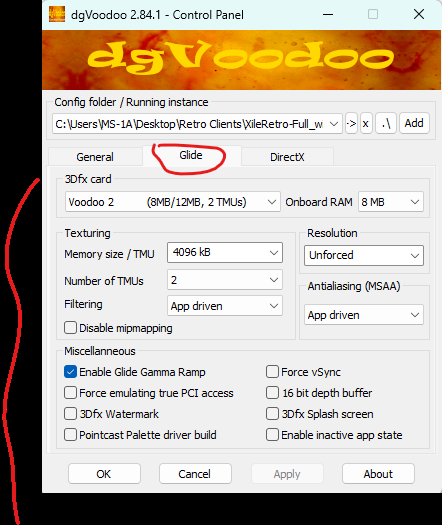
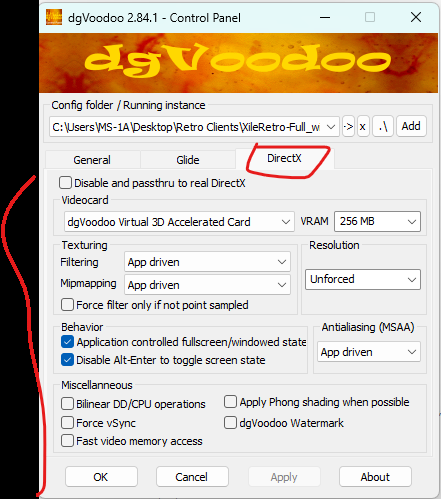
XileRetro ships with **dgVoodoo**, the wrapper that lets this DirectX 7 client run on modern Windows. Open **dgVoodooCpl.exe** in your XileRetro folder and match the three tabs below. These are the settings the client is happiest with; the defaults usually work, but this is what to set when the game will not start, flickers, or runs in the wrong size.

{% hint style="success" %}
Prefer to watch? The same setup step by step: [**dgVoodoo settings video**](https://youtu.be/KvaFUzEpsmE)
{% endhint %}

{% embed url="<https://youtu.be/KvaFUzEpsmE>" %}
Setting up dgVoodoo for XileRetro
{% endembed %}

### Ready-made files

Rather not click through the tabs? This zip has the wrapper and the finished settings. Copy all of it into your XileRetro folder, the one with `xile.exe` and `data.grf`, replacing the files it asks about, then set the Graphics Device in **Setup.exe** to the **\[dgVoodoo TnL HAL]** entry.

{% file src="/files/0HHQQpqjOiM9rKHRlT6P" %}
dgVoodoo for XileRetro: D3DImm.dll, DDraw\.dll, a preconfigured dgVoodoo.conf, the control panel and a readme
{% endfile %}

<figure><img src="https://2362587649-files.gitbook.io/~/files/v0/b/gitbook-x-prod.appspot.com/o/spaces%2FdzfO5Sx4NnUofD0oUMw1%2Fuploads%2Fgit-blob-cf1ac6f2cdd6f5ec1f585000ecb784f2ac9c6f81%2Fdgvoodoo_install.gif?alt=media" alt="Copying the dgVoodoo files into the XileRetro folder"><figcaption><p>Drag the files out of the zip into the folder that holds xile.exe and data.grf, and replace when Windows asks</p></figcaption></figure>

{% hint style="warning" %}
Some antivirus software flags `dgVoodooCpl.exe`. It is the official dgVoodoo control panel and it is safe, but you only need it to change settings: the two DLLs and `dgVoodoo.conf` are what the game actually uses, so you can delete the control panel if you prefer.
{% endhint %}

{% hint style="info" %}
Check the **Config folder / Running instance** box at the top first: it must point at your XileRetro folder, the one holding `xile.exe`. Click **OK** when you are done, not just Apply, so the settings are written to `dgVoodoo.conf`.
{% endhint %}

### General

<figure><img src="https://2362587649-files.gitbook.io/~/files/v0/b/gitbook-x-prod.appspot.com/o/spaces%2FdzfO5Sx4NnUofD0oUMw1%2Fuploads%2Fgit-blob-799e73f5e169363d1532e7aa217a47a2239ca32f%2Fdgvoodoo_general.png?alt=media" alt="dgVoodoo General tab"><figcaption><p>General tab</p></figcaption></figure>

* **Output API:** Best available one
* **Adapter(s) to use:** All of them, **Full Screen Output:** Default
* **Appearance:** Windowed (pick Full Screen only if you play fullscreen), **Scaling mode:** Unspecified
* **Brightness / Color / Contrast:** 100% / Norm / 100%
* Tick **Keep window aspect ratio** and **Capture mouse**. Leave Progressive scanline order, Enumerate refresh rates and Center app window unticked.

### Glide

<figure><img src="https://2362587649-files.gitbook.io/~/files/v0/b/gitbook-x-prod.appspot.com/o/spaces%2FdzfO5Sx4NnUofD0oUMw1%2Fuploads%2Fgit-blob-ae7be61b98908c38ec4896ac5244f04b9e2f158a%2Fdgvoodoo_glide.png?alt=media" alt="dgVoodoo Glide tab"><figcaption><p>Glide tab</p></figcaption></figure>

* **3Dfx card:** Voodoo 2 (8MB/12MB, 2 TMUs), **Onboard RAM:** 8 MB
* **Memory size / TMU:** 4096 kB, **Number of TMUs:** 2
* **Filtering:** App driven, **Resolution:** Unforced, **Antialiasing (MSAA):** App driven
* Tick **Enable Glide Gamma Ramp**. Leave the rest unticked.

### DirectX

<figure><img src="https://2362587649-files.gitbook.io/~/files/v0/b/gitbook-x-prod.appspot.com/o/spaces%2FdzfO5Sx4NnUofD0oUMw1%2Fuploads%2Fgit-blob-9b2e4f0b4a294d8427a9ef250d7726c7206438c9%2Fdgvoodoo_directx.png?alt=media" alt="dgVoodoo DirectX tab"><figcaption><p>DirectX tab</p></figcaption></figure>

* **Disable and passthru to real DirectX:** unticked. This is the important one; ticking it hands the client back to your real driver and brings back the `Cannot init d3d` error on most machines.
* **Videocard:** dgVoodoo Virtual 3D Accelerated Card, **VRAM:** 256 MB
* **Filtering** and **Mipmapping:** App driven, **Resolution:** Unforced, **Antialiasing (MSAA):** App driven
* Tick **Application controlled fullscreen/windowed state** and **Disable Alt-Enter to toggle screen state**.
* Leave Bilinear DD/CPU operations, Force vSync, Fast video memory access, Phong shading and the dgVoodoo Watermark unticked. The watermark only adds a logo in the corner of the game.

After saving, open **Setup.exe** and confirm the Graphics Device still ends in **\[dgVoodoo TnL HAL]**, then start the game.

## The game opens in a tiny window

Same window, different setting: open **Setup.exe**, choose a larger **Resolution**, tick **Play in Full Screen** if you want fullscreen, then **Apply**.

If Setup refuses to save the resolution, edit `dinput.ini` in the game folder with Notepad and set a resolution divisible by 4:

```
  WindowWidth =1024
  WindowHeight =768
```

***

## mfc110.dll, msvcp110.dll or msvcr110.dll is missing

The client needs the Visual C++ 2012 runtime.

* Install **Visual C++ Redistributable for Visual Studio 2012 Update 4**.
* Install the **x86 (32-bit)** version first, it is the one the client uses. Add x64 only if the error continues.
* For `MSVCP120.dll` install the **2013** redistributable, and for `MSVCP140.dll` or `api-ms-win-crt-runtime-l1-1-0.dll` install the **2015 to 2022** redistributable.

***

## DirectX errors, missing d3dx9 files

Install the **DirectX End-User Runtime**, then restart the computer. Windows 10 and 11 ship with DirectX 12, but this client needs the older DirectX 9 files that the runtime adds.

***

## Your game executable has been modified or is not the latest version

**Run the patcher as administrator.** Right click `Play XileRetro.exe` in your XileRetro folder, choose **Run as administrator**, and let it finish. Without it the patcher is not allowed to replace `xile.exe`, so the old file stays behind and the server keeps rejecting it.

<figure><img src="https://2362587649-files.gitbook.io/~/files/v0/b/gitbook-x-prod.appspot.com/o/spaces%2FdzfO5Sx4NnUofD0oUMw1%2Fuploads%2Fgit-blob-d43e2b16df95309f4fdc11b28906e00102567b50%2Frun_patcher_as_admin.gif?alt=media" alt="Running Play XileRetro.exe as administrator"><figcaption><p>Right click <code>Play XileRetro.exe</code>, then Run as administrator</p></figcaption></figure>

{% hint style="warning" %}
**If you still get an error, close `xile.exe` first.** A running game holds the file open and the patcher cannot overwrite it. Close every XileRetro window, check Task Manager for a leftover `xile.exe`, end it, then patch again.
{% endhint %}

Still failing?

* Add the whole XileRetro folder to your antivirus exclusions, then patch again. Antivirus software often deletes part of a patch while it downloads.
* Keep the game out of `C:\Program Files`; Windows blocks writes there even for an administrator.

***

## The patcher opens but Start Game does nothing

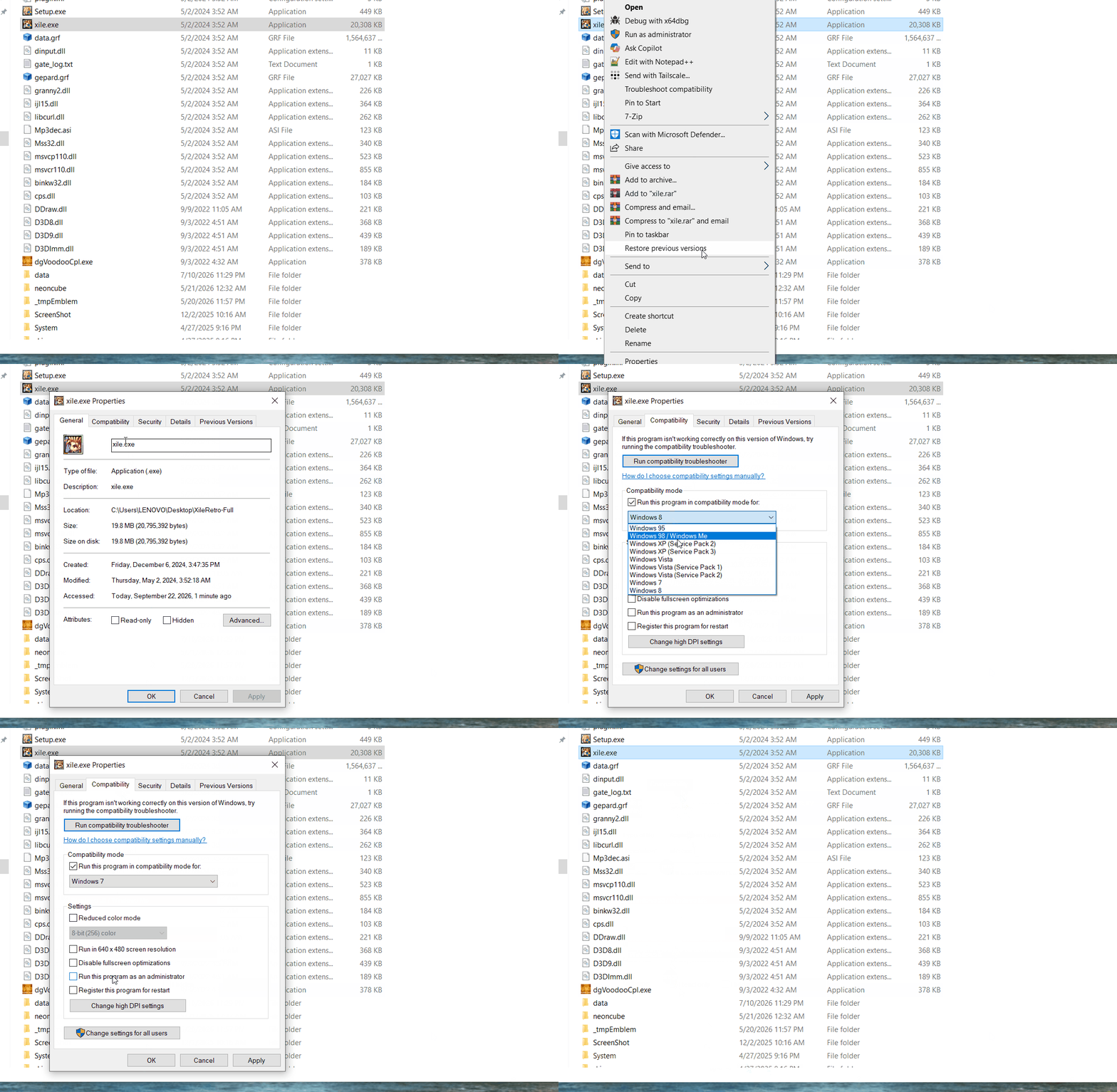
Right click `xile.exe`, open **Properties**, then the **Compatibility** tab, tick **Run this program in compatibility mode for Windows XP (Service Pack 3)** and **Run this program as administrator**, click **Apply**. Start the game from the patcher again.

<figure><img src="https://2362587649-files.gitbook.io/~/files/v0/b/gitbook-x-prod.appspot.com/o/spaces%2FdzfO5Sx4NnUofD0oUMw1%2Fuploads%2Fgit-blob-f39105bd1c5870ee96ee32105648d887ea3dd60b%2Frun_xile_as_admin.gif?alt=media" alt="Setting xile.exe to always run as administrator"><figcaption><p>Right click <code>xile.exe</code> in your XileRetro folder, Properties, Compatibility, then tick Run this program as administrator and Apply</p></figcaption></figure>

{% hint style="info" %}
Ticking it in Properties makes the setting stick, so the game starts elevated every time rather than only when you remember to right click it.
{% endhint %}

***

## Still stuck?

* The full list of fixes is on the [Troubleshooting](/support/troubleshooting.md) page.
* Ask in the **#support** channel on [Discord](https://discord.gg/hp7CS6k) and include a screenshot of the error, your Windows version and what you already tried.